Smart shift scheduling for your team

Plan and assign work schedules for your entire workforce visually. Detect overlaps, assign in bulk and adapt shifts to your company's needs.

Try for free✓ 15 days free  ·  No card required
Smart shift scheduling for your teamSmart shift scheduling for your team

Full team weekly view

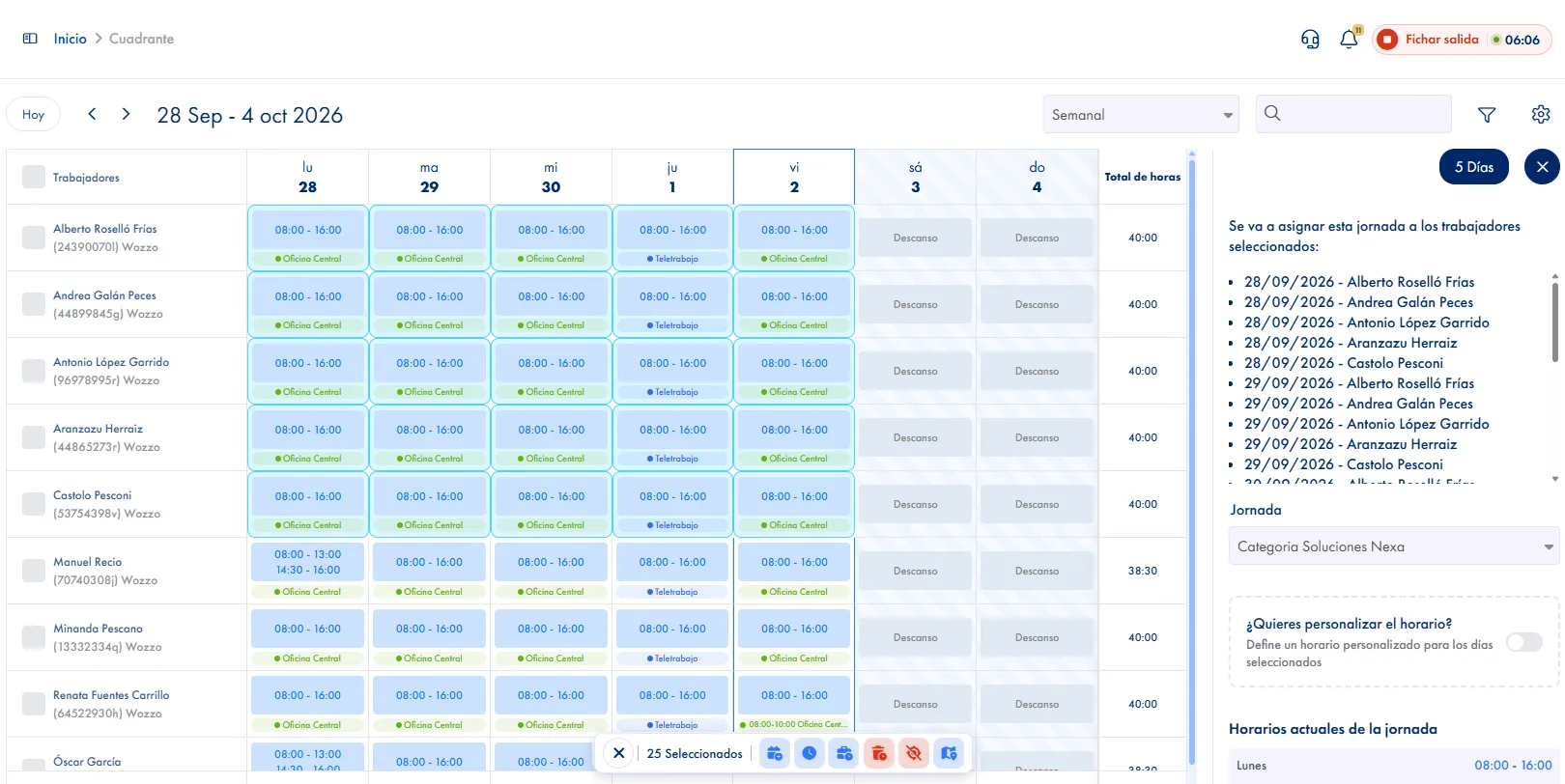
See all your team's shifts in one click. Filter by site, department or employee.

Bulk shift assignment

Assign the same schedule to multiple employees at once or for date ranges. Save hours of management with bulk assignment.

Automatic overlap detection

JornAda automatically detects and resolves schedule overlaps. It splits, shortens or merges existing assignments.

Night shift support

Configure shifts that cross midnight without issues. The system correctly handles overnight hours and their calculations.

Bulk vacation assignment

Plan team vacation periods directly from the shift planner. Select employees and date range with one click.

Reusable schedule templates

Create work schedule templates (morning, afternoon, night, split) and assign them to employees with one click.

How it works

How shift scheduling works in JornAda

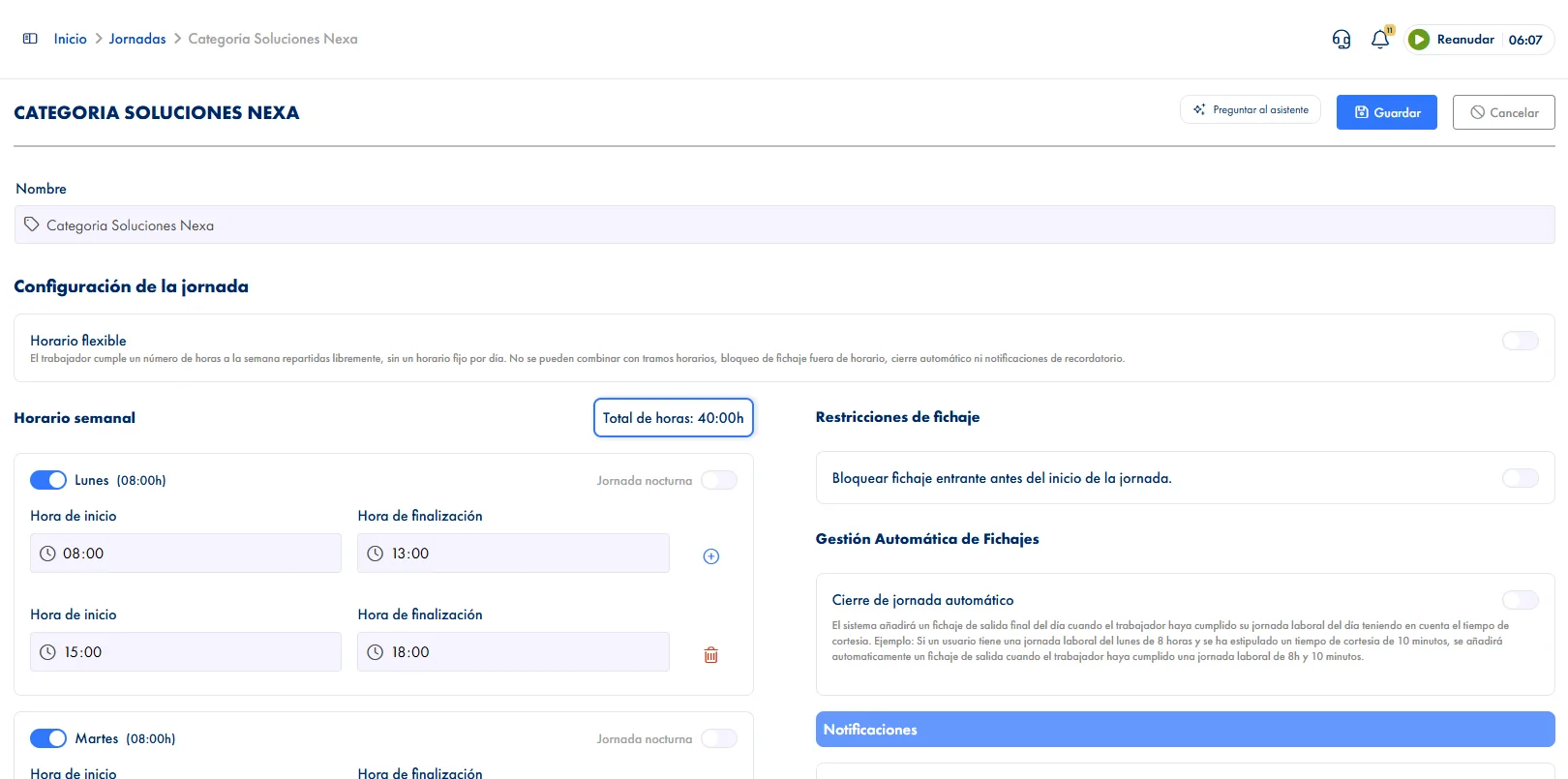
  1. You define the work schedule once

    The ranges for each day with their start and end times. Two ranges on the same day make a split shift, and where there are no fixed hours you set weekly ones instead.

  2. You assign it on the shift schedule

    A grid with employees in rows and days in columns. You select by dragging and apply to the whole selection at once.

  3. JornAda stores a copy of the schedule

    The assignment carries a copy of the schedule inside it, and trims itself to that person's contract periods.

  4. The schedule starts counting

    That person now has expected hours, so reports and the hours balance have something to compare against. And they get an alert.

Editing a work schedule does not rewrite the past

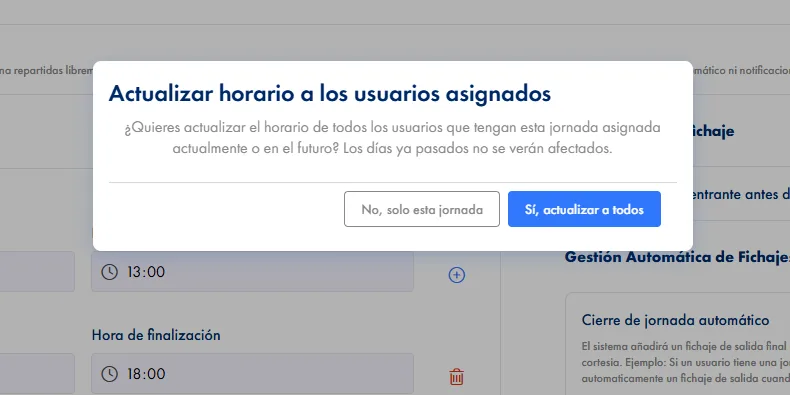
Every assignment stores a full copy of the schedule, not a reference. So changing the morning shift in June does not touch what was planned in March: closed months keep being compared against the hours that were genuinely expected then. And it takes a one-off schedule just for that assignment, without touching the original.

Editing a work schedule does not rewrite the past

What defines a work schedule

As many ranges per day as you need, and two make a split shift. Overlaps are refused, so you cannot save a schedule that counts the same minutes twice. It can close the day by itself once the hours are met, warn when nobody clocked out, and night shifts are marked day by day. Where hours are not fixed, you agree weekly ones.

What defines a work schedule

Acting in bulk from the grid

Shift rotations, duplicating a plan you already made, assigning or removing schedules, adding time off and filling in clock-ins, all on the same selection. Filling clock-ins uses each day's own expected schedule, not one for all of them, and goes through the same approval route as any correction. The eight-colour legend shows at a glance what each day holds.

Acting in bulk from the grid
Common questions

Frequently asked questions about shift scheduling

Can't find your answer?

Write to us and we will help you sort it out.

Contact us

You can filter by team to select all its people at once, but the assignment is stored per person and per date, not per team. The practical consequence: whoever joins that team later does not inherit the schedule, you have to assign it.

No. Each assignment carries its own copy of the schedule, taken when it was assigned, so editing the schedule affects what you assign from now on and leaves earlier planning untouched. If you want the change to reach a period already planned, you reassign those dates.

The new one always wins, with no errors to resolve and no priorities to configure. If it covers the old one completely, the old one goes; if it overlaps the start or the end, the old one is trimmed; and if it lands in the middle, the old one splits in two. Everything is trimmed to contract periods as well.

With a flexible schedule: you agree the weekly hours and the person spreads them. JornAda distributes what is expected across the seven days so a full week adds up to the minute. In exchange, flexible has no automatic close, no forgotten clock-in alerts and no per-assignment schedule.

Yes. You select the days on the grid and fill them with each day's expected schedule, or by hand if things changed. A reason is required and it goes through the same approval flow as a normal correction, so who did it, when and why is all recorded.

Yes. The grid has month, week and day views, and selection is done by dragging: whole rows if you want to act on people, individual cells if you want to act on specific days. On that selection you assign or remove schedules, add time off and fill in clock-ins, all at once. There are also shift rotations and the option to duplicate a plan you already made, which is what saves you the following month.

Everything planned after that date can be cleared in bulk, and before it happens a preview states how many assignments will be deleted, how many trimmed and how many absences removed. It is worth reading, because that clean-up cannot be undone. Otherwise, any assignment trims itself to the person's contract periods: you cannot plan someone outside their contract.

That is what the eight-colour legend is for: it distinguishes who has a schedule and who does not, time off, absences, national, regional and local public holidays, and days outside a contract. The site, team and status filters narrow things down before you look. The grid totals the hours by day, by employee and overall, and downloads as a PDF, A4 for short periods and A3 for longer ones.

Yes, they get a push notification about the assignment, and an email too if they have that switched on in their profile. If the change was made by the person themselves, they are not notified: there is no point telling someone about something they just did. And assigning the schedule also switches on whatever alerts that schedule carries, such as the reminder to clock in or out on time.

A day takes as many ranges as you need, and two ranges on the same day are exactly that, a split shift. The system refuses ranges that overlap or even touch, so you cannot save a schedule by mistake that counts the same minutes twice. Night shifts are marked day by day, and only on those days is an end time earlier than the start accepted, understood as falling on the next day.

Organize your company's shifts in minutes

Plan and assign work schedules for your entire workforce visually. Detect overlaps, assign in bulk and adapt shifts to your company's needs.