Complete workday reports in seconds

Generate and download time tracking reports in Excel, CSV or PDF. Filter by employee, site, department or company and get the data you need for inspections or audits.

Try for free✓ 15 days free  ·  No card required
Complete workday reports in seconds

Export to Excel, CSV and PDF

Download workday records in your preferred format. CSV files are compatible with any HR or payroll software.

Advanced filters

Filter by employee, site, company or date range. Get exactly the report you need without unnecessary data.

Individual report per employee

Generate a complete report for an employee with all their clock-ins, absences, worked hours and balance. Perfect for reviews or audits.

Full company report

Get the report for an entire company or site workforce in a single file. Manage large teams efficiently.

Ready for labor inspections

Reports comply with the requirements of Spanish Time Tracking Law (RDL 8/2019) and are valid for Social Security inspections.

Multi-language (ES / EN)

Generate reports in Spanish or English according to the employee's language. Ideal for companies with international teams.

How it works

How JornAda's time tracking reports work

  1. You pick the period and the filter

    Site, team, employee and period. A report covers at most one continuous year, so a full financial year fits in one go.

  2. JornAda produces one row per day

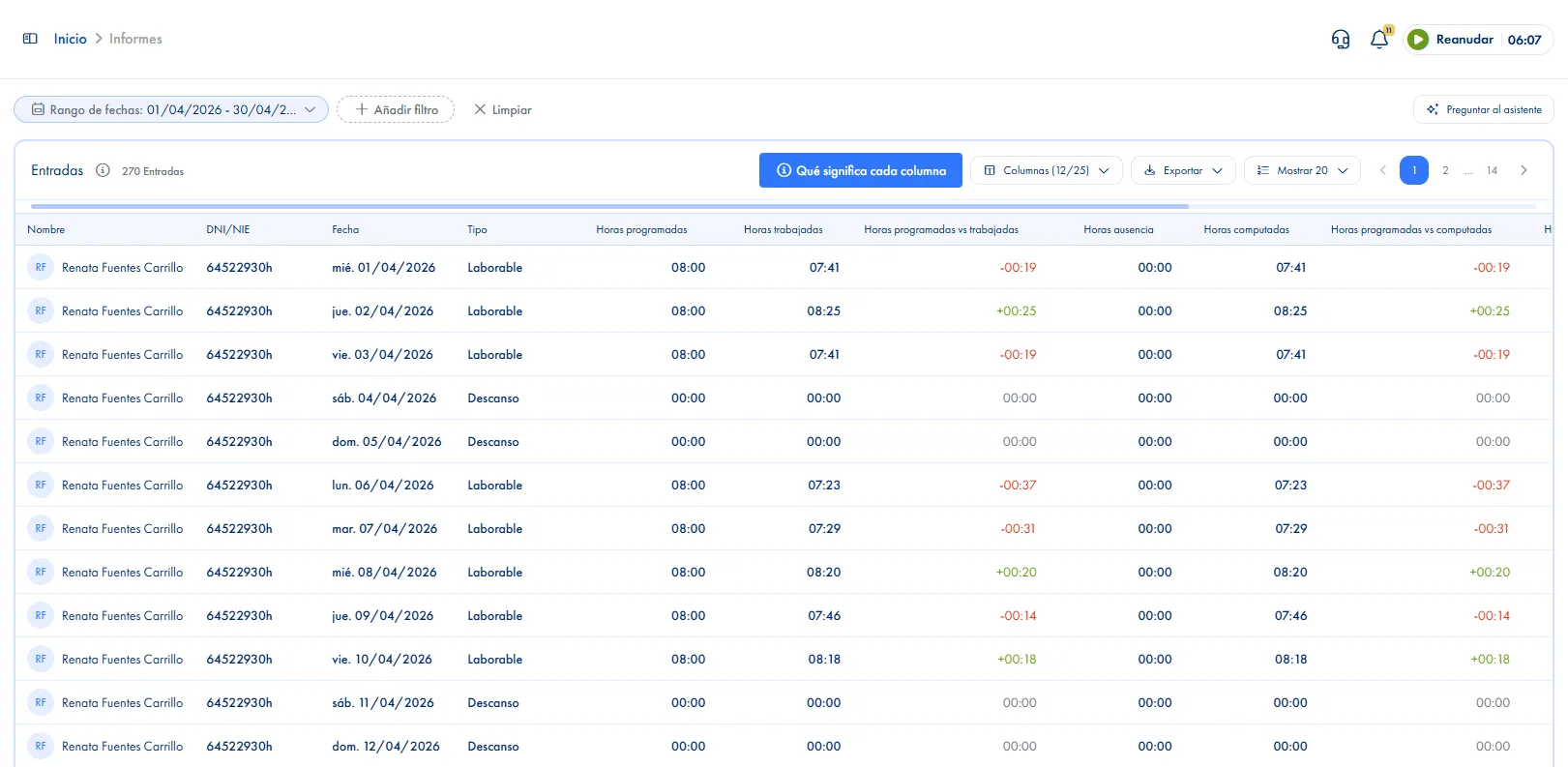
    One row for every day under contract, not just the days with clock-ins: rest days, public holidays and absences appear too.

  3. Every column has its formula

    23 columns, each with its formula written down, and a panel explaining what every one means without leaving the screen.

  4. You download CSV or PDF

    The file is generated on the server with every result the filter returns, not just the page you happen to be looking at.

23 columns and not one of them eyeballed

Scheduled, worked, absence, expected, compensated and total hours, plus the three differences between them, each with a fixed formula. A public holiday or a full-day absence takes the whole day off the count; a partial one takes only its slot. And a working day with no clock-in at all is not left blank: it is flagged as No clock-in.

23 columns and not one of them eyeballed

The PDF you hand to an inspector

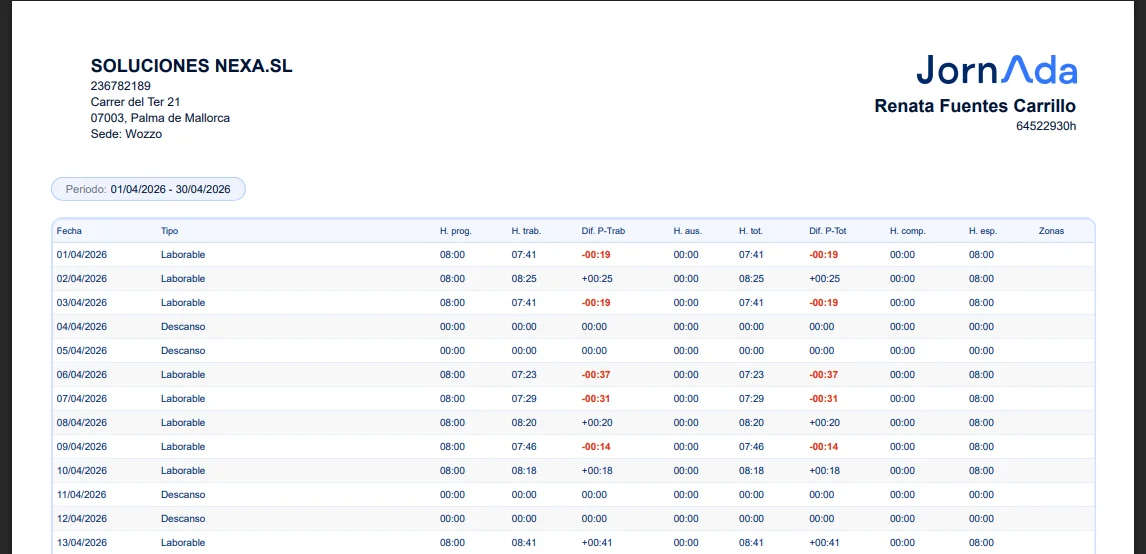
It comes out with your company's tax details at the top and the list of filters applied, resolved into names, because a report that does not say why it is filtered misleads whoever receives it. It groups by employee with a totals row, picks A4 or A3 depending on the columns, and is titled Working time record.

The PDF you hand to an inspector

A CSV your payroll bureau opens without a fight

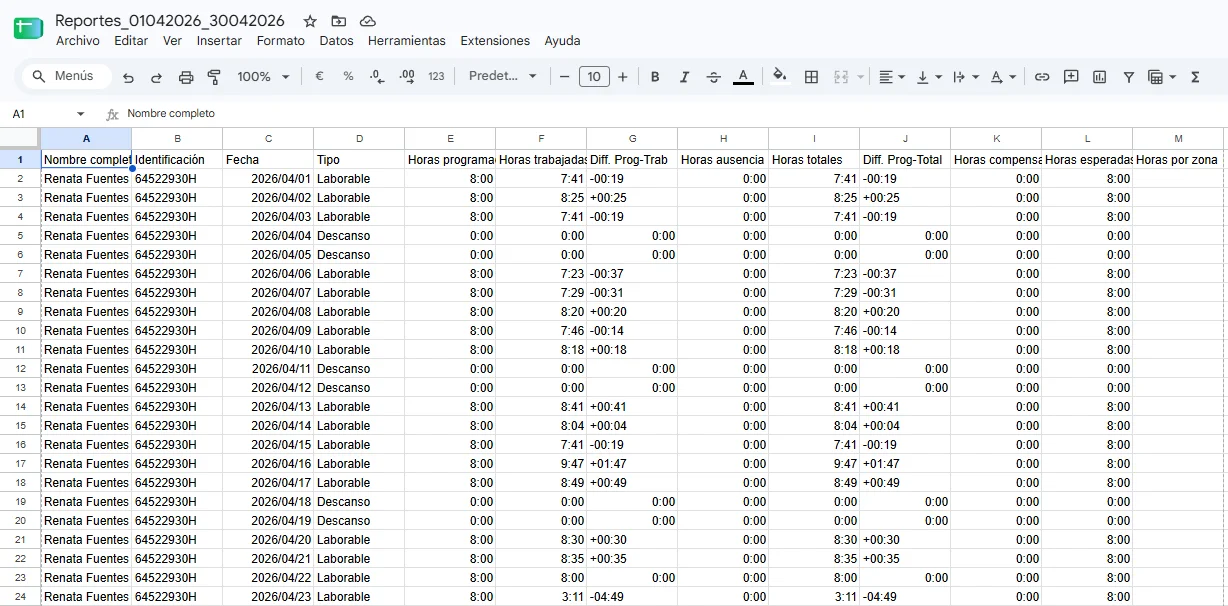
Semicolon separated with a UTF-8 BOM, so accents come out right in a Spanish spreadsheet. Dates as dd/mm/yyyy and the filename carrying the company and the period, so you do not end up with five downloads called the same thing. And there is a daily attendance summary that arrives by email at 08:00.

A CSV your payroll bureau opens without a fight
Common questions

Frequently asked questions about reports and exports

Can't find your answer?

Write to us and we will help you sort it out.

Contact us

Yes. The report generates one row for every day of the period under contract, not just the days with clock-ins. Rest days, public holidays and absences appear with their type, and a working day with no clock-ins is flagged as No clock-in. A record with gaps is no record at all.

That gap is deliberate. Reports show the hours as clocked, without applying the company's courtesy margin; the hours balance does apply it. When you need the raw figure to review a month or justify it to a third party, the report is the right screen.

CSV and PDF. The CSV, semicolon separated with a UTF-8 BOM, is for dropping into a spreadsheet or handing to your payroll bureau. The PDF is for handing over or filing: tax header, filters applied, a section per employee with their totals, and the legal footer.

Not from the Reports screen. What does exist is the daily attendance summary by email at 08:00, switched on in company settings, and the assistant's recurring tasks, which let you schedule a report of your own and receive it when it is due.

They are company admin only: team leaders and employees do not get into this screen, though they do have other views of their own data.

From this week up to a full year. A report covers at most one continuous year: if you ask for a longer custom period, the end date trims itself to a year from the start rather than returning an error. In practice that means a whole financial year comes in a single download, which is usually what a payroll bureau or an inspector asks for.

Yes, each with its type. The report generates one row for every day of the period the person is under contract, and that includes rest days, the public holidays of their site and days of absence. Days outside the contract do not appear, and anyone whose contract has already ended is flagged with its end date. A record with gaps is no record at all, and that is why it skips no day.

That is the idea. The screen carries a panel explaining what every column means without leaving it, and the PDF includes the same explanation at the end, only for the columns you included. The detail is grouped by employee with a totals row, and negative differences come out in red, so what needs attention shows before you read any number. It is a document you can hand to someone outside without explaining it.

It is not left blank: it is flagged as No clock-in, which is precisely the figure you need to see. The report also carries a comments column with the reason for the last correction and the absence comment, and another saying whether that day was modified. So when someone asks about an odd day, the explanation is on the same row rather than on another screen.

Yes, through the public API. It has an endpoint for the hours balance that accepts a date range, a filter by employee or site and grouping by week or by month, with pagination. That is the route when you want another system to read the data by itself, rather than downloading a file and uploading it again. For everything else there is CSV and PDF, which come out with every result the filter returns.

Always have your company's reports ready

Generate and download time tracking reports in Excel, CSV or PDF. Filter by employee, site, department or company and get the data you need for inspections or audits.